
Soniq Studio gives you control over when invoices go out and what they include. It’s worth understanding how the process works so you know what to expect — and so you can explain it clearly to your students when they have questions.
How invoices are generated
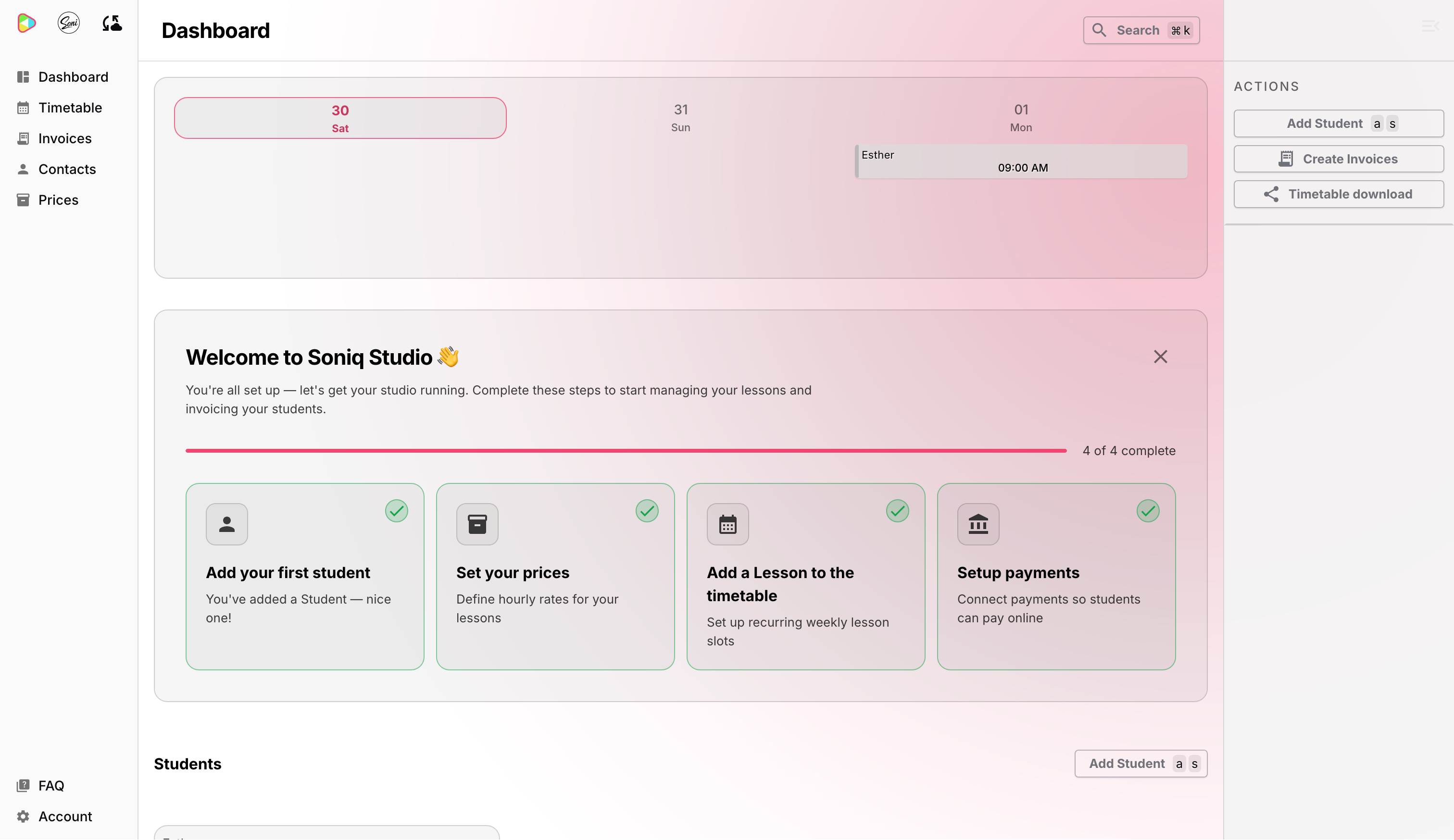
Invoices are created manually, so you stay in control of what goes out and when. To get started, go to Invoices in the main navigation and click Create Invoices in the actions panel.
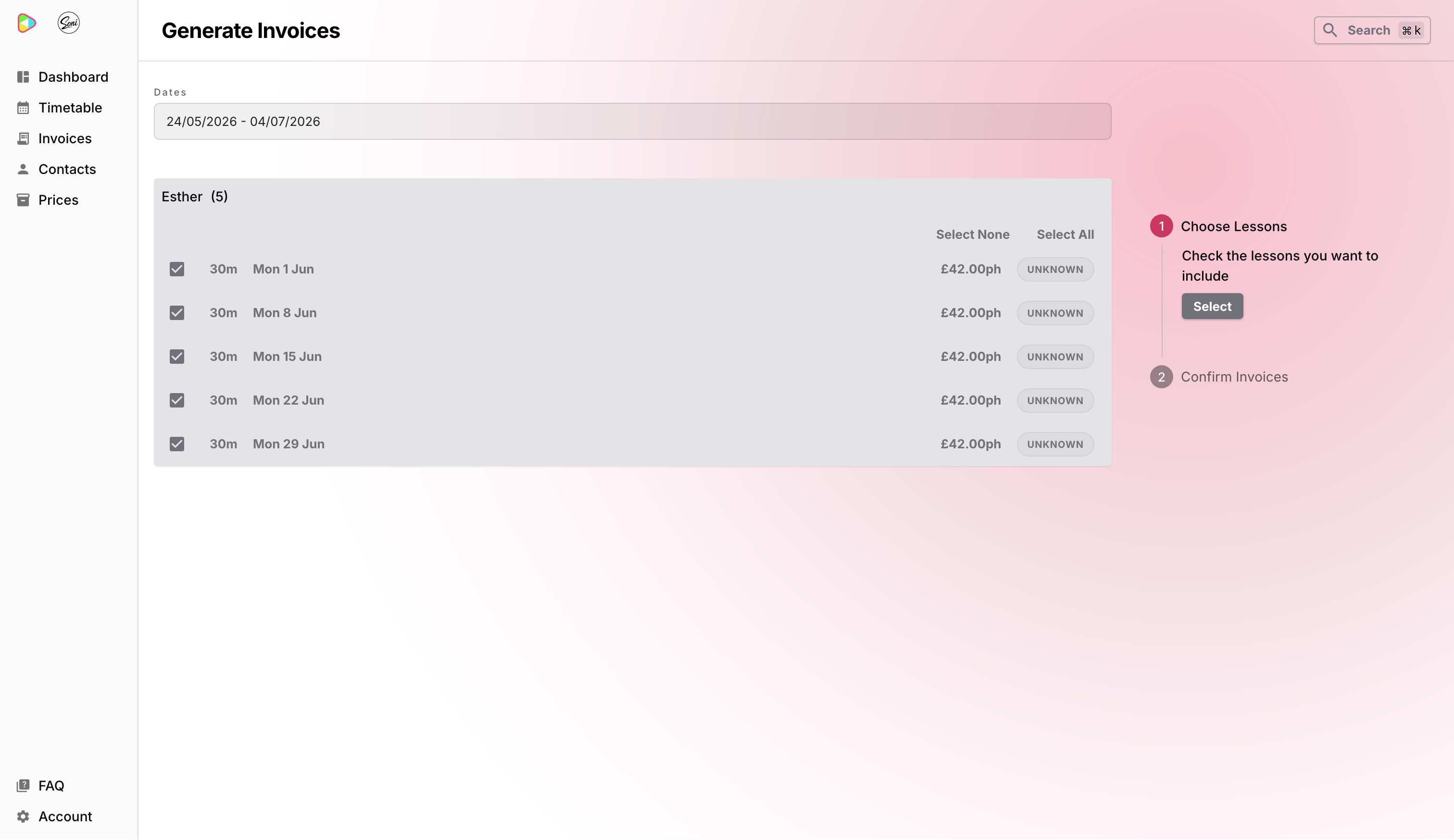
The Generate Invoices page opens with a two-step process. First, set your date range and review the lessons available for that period. Each lesson is listed with its date, duration, and rate, so you can check everything looks right before committing. Tick or untick individual lessons if you need to adjust what’s included.
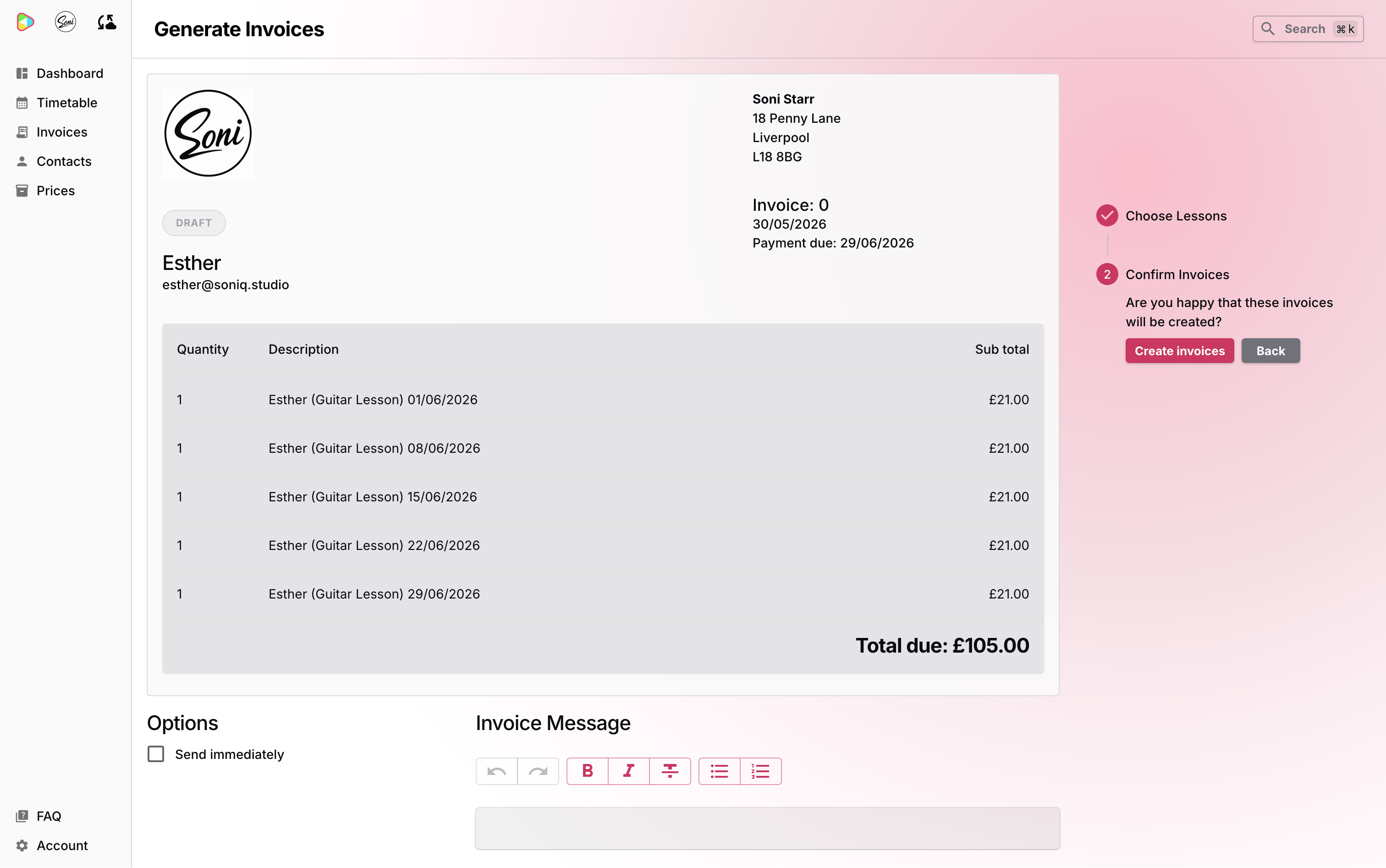
Once you’re happy with the selection, Soniq Studio shows you a preview of the invoice — your studio name, address, and logo at the top, the student’s name and email below, and each lesson as a line item. You’ll also see the total amount due and the payment due date. At this stage you can optionally add an Invoice Message — a personal note that appears in the email the student receives.
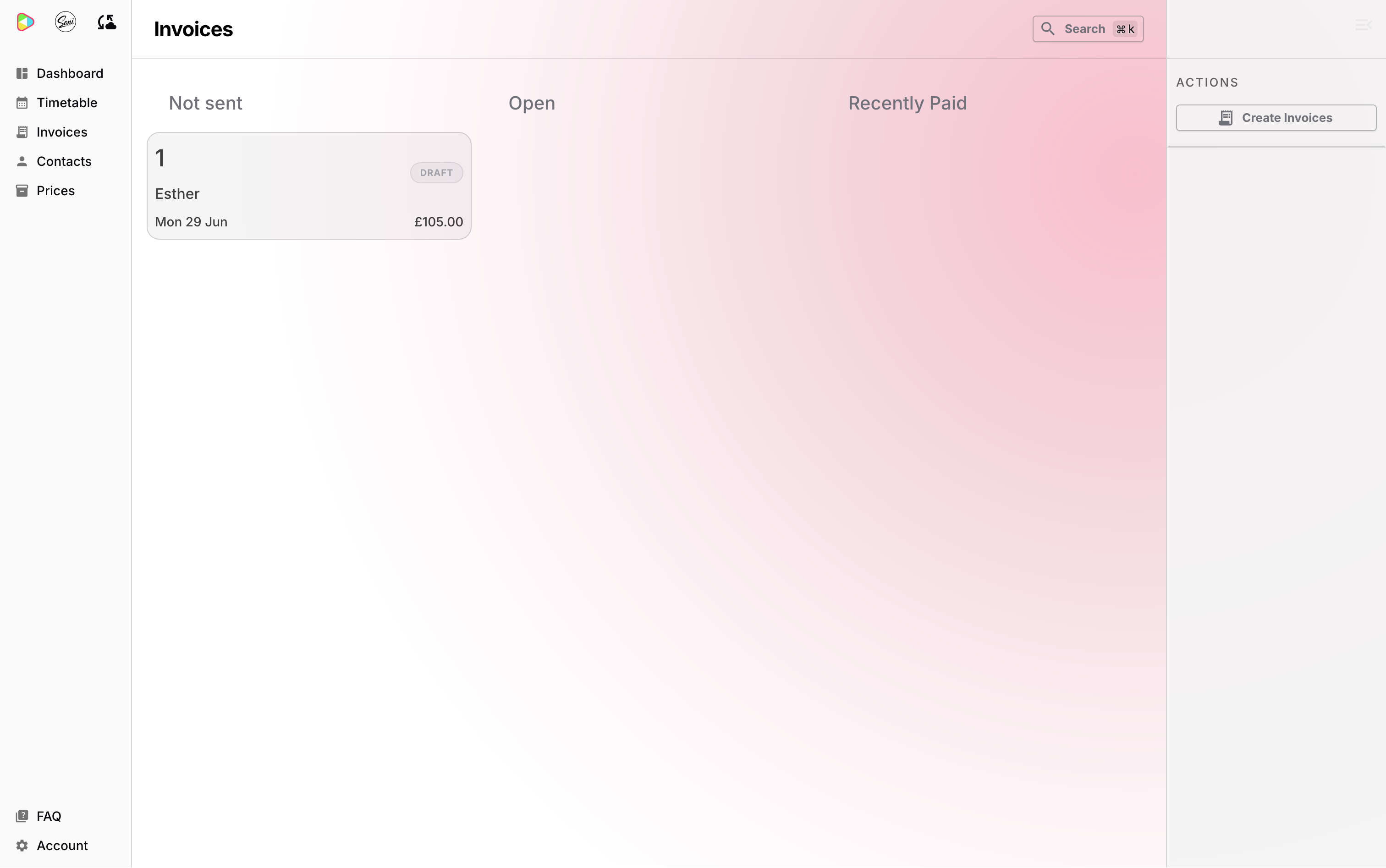
Click Create invoices and the invoice is saved as a draft. It appears in the Not sent column of your Invoices list, ready for you to review before anything goes to the student.
Sending an invoice and collecting payment
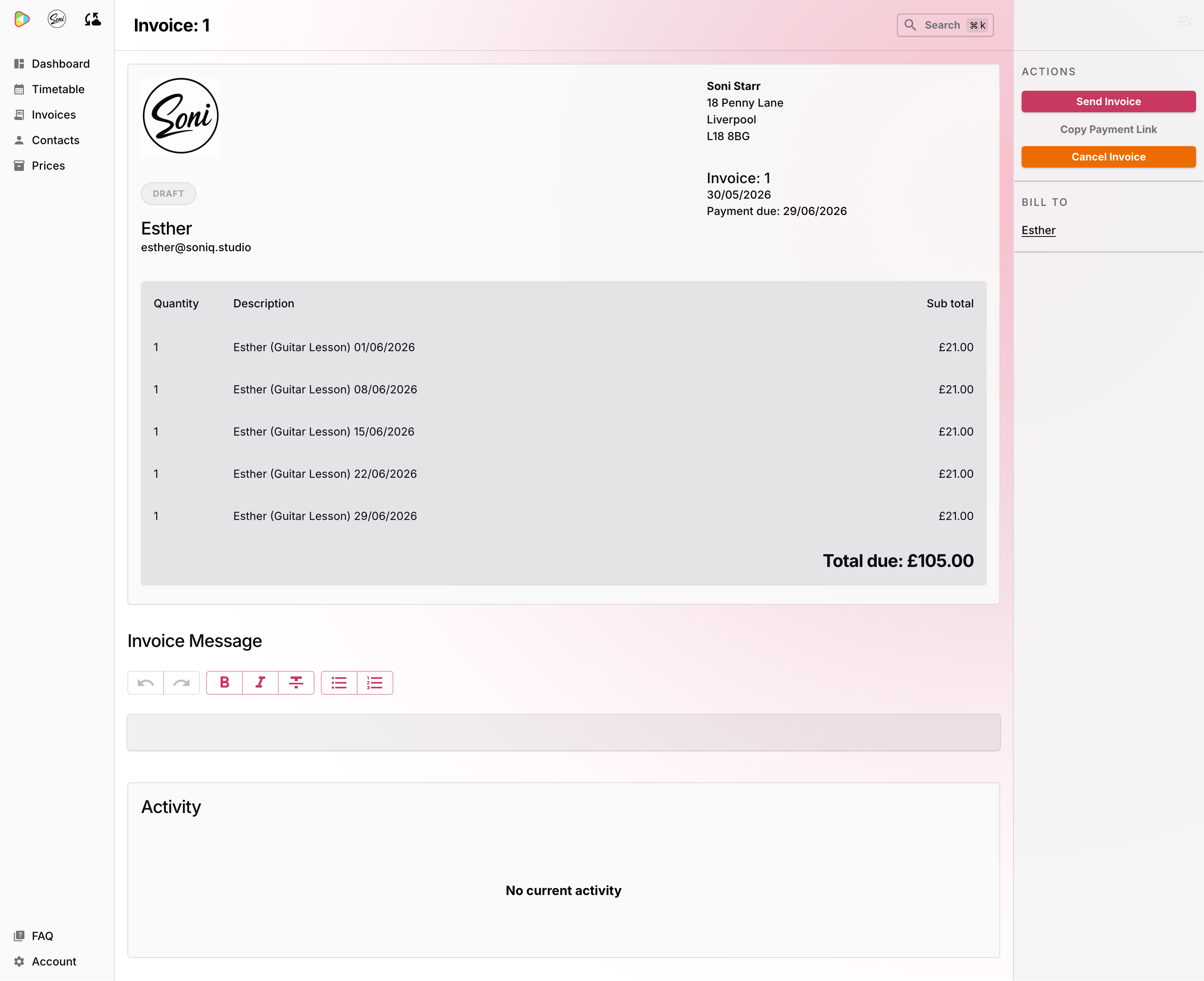
Opening the draft invoice shows the full invoice detail along with the available actions. When you’re ready, click Send Invoice to send it to the student.
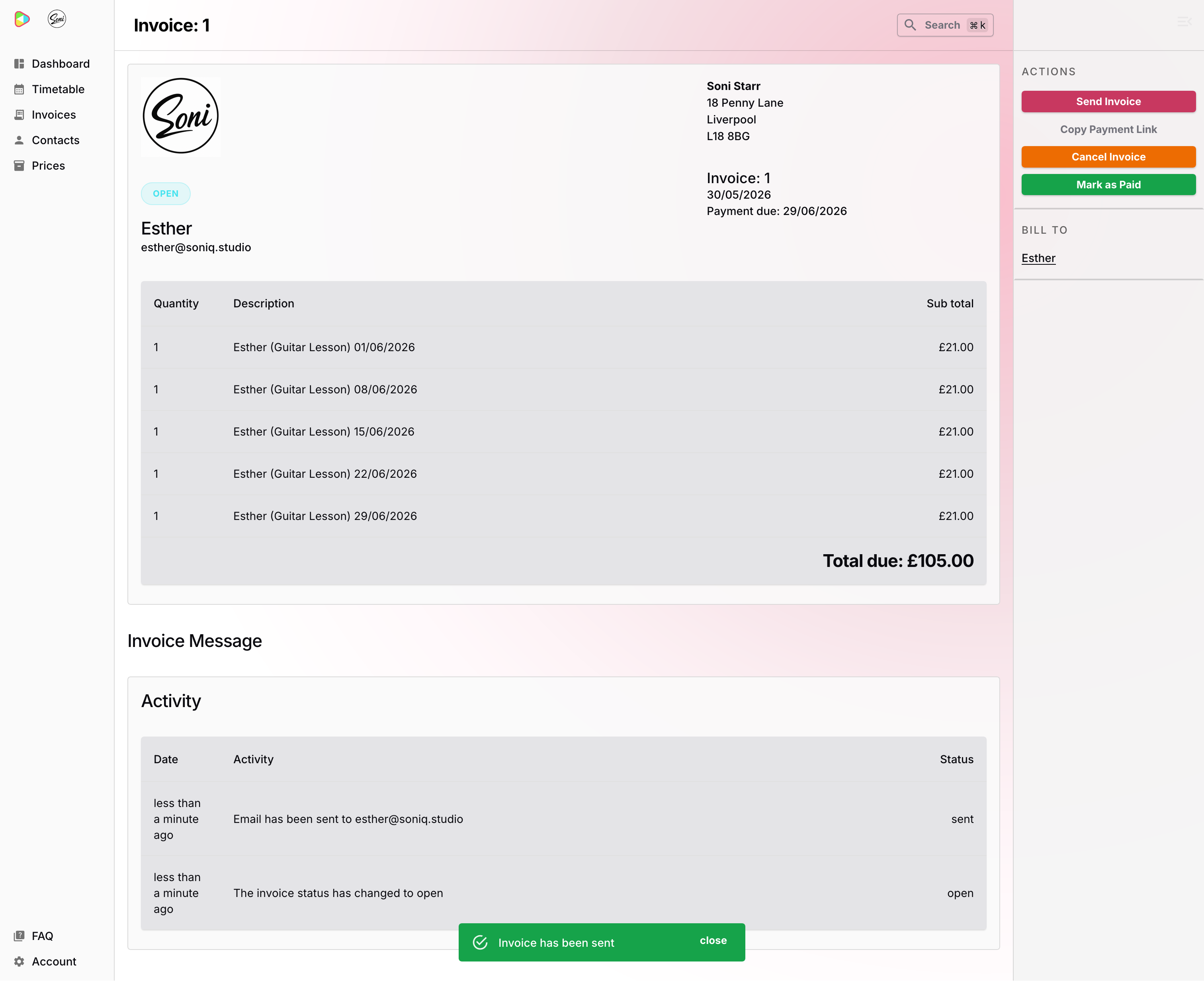
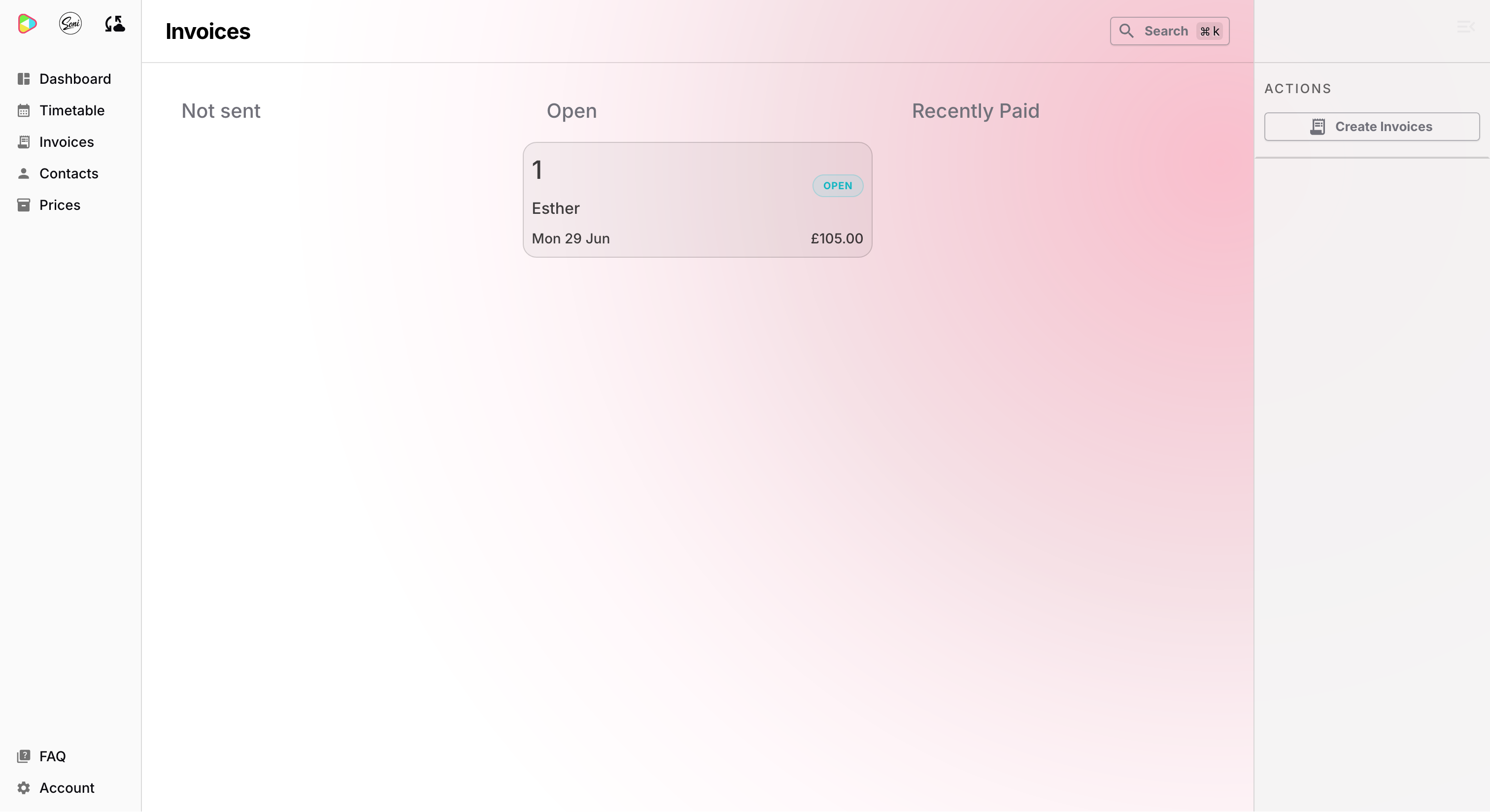
Once sent, the invoice moves to Open and the activity log updates to confirm the email was delivered. A Mark as Paid action also appears for when you need to record payment received outside the system.
The student receives an email with a Payment button for card payment, a summary of the lessons, and the invoice attached as a PDF.
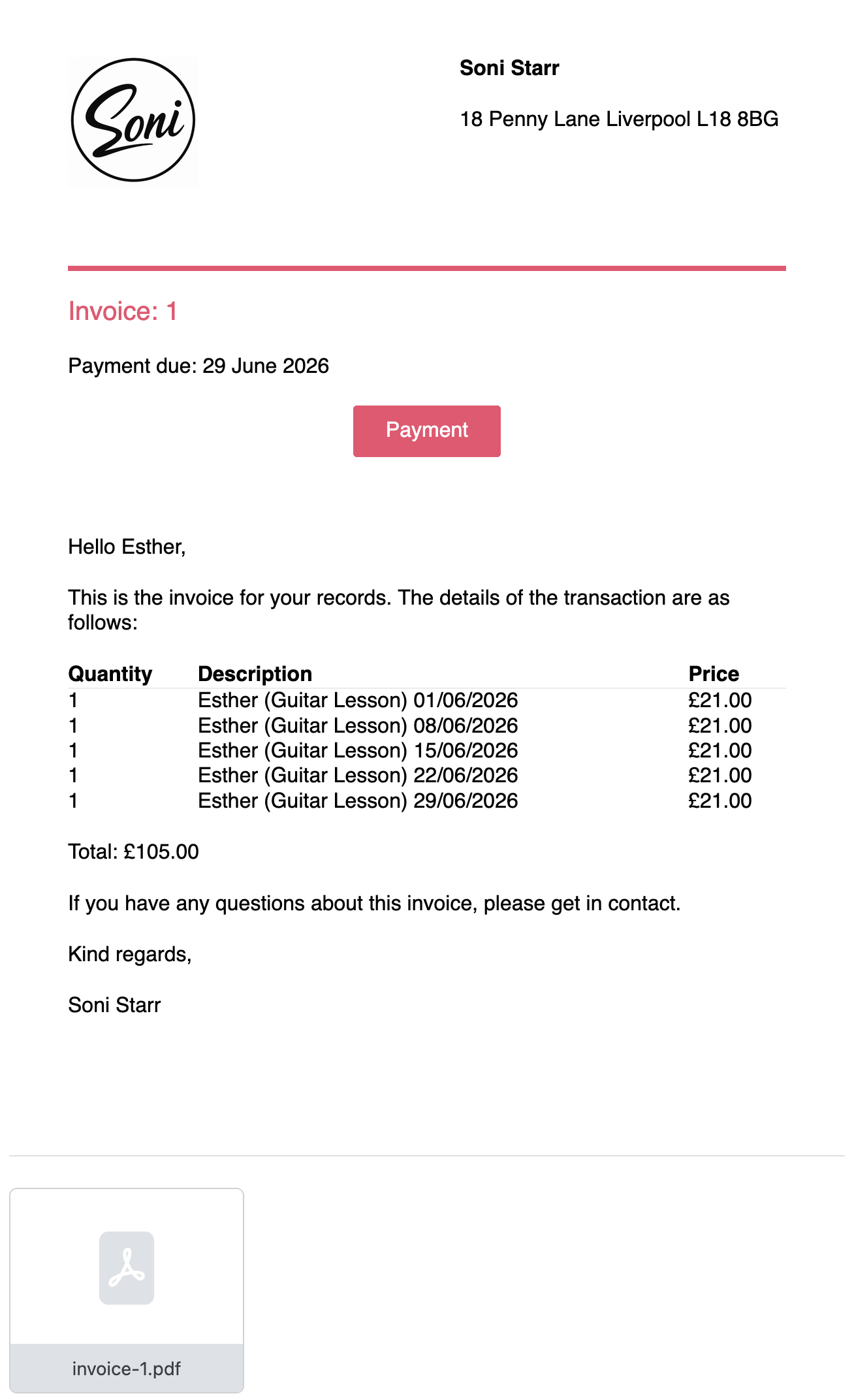
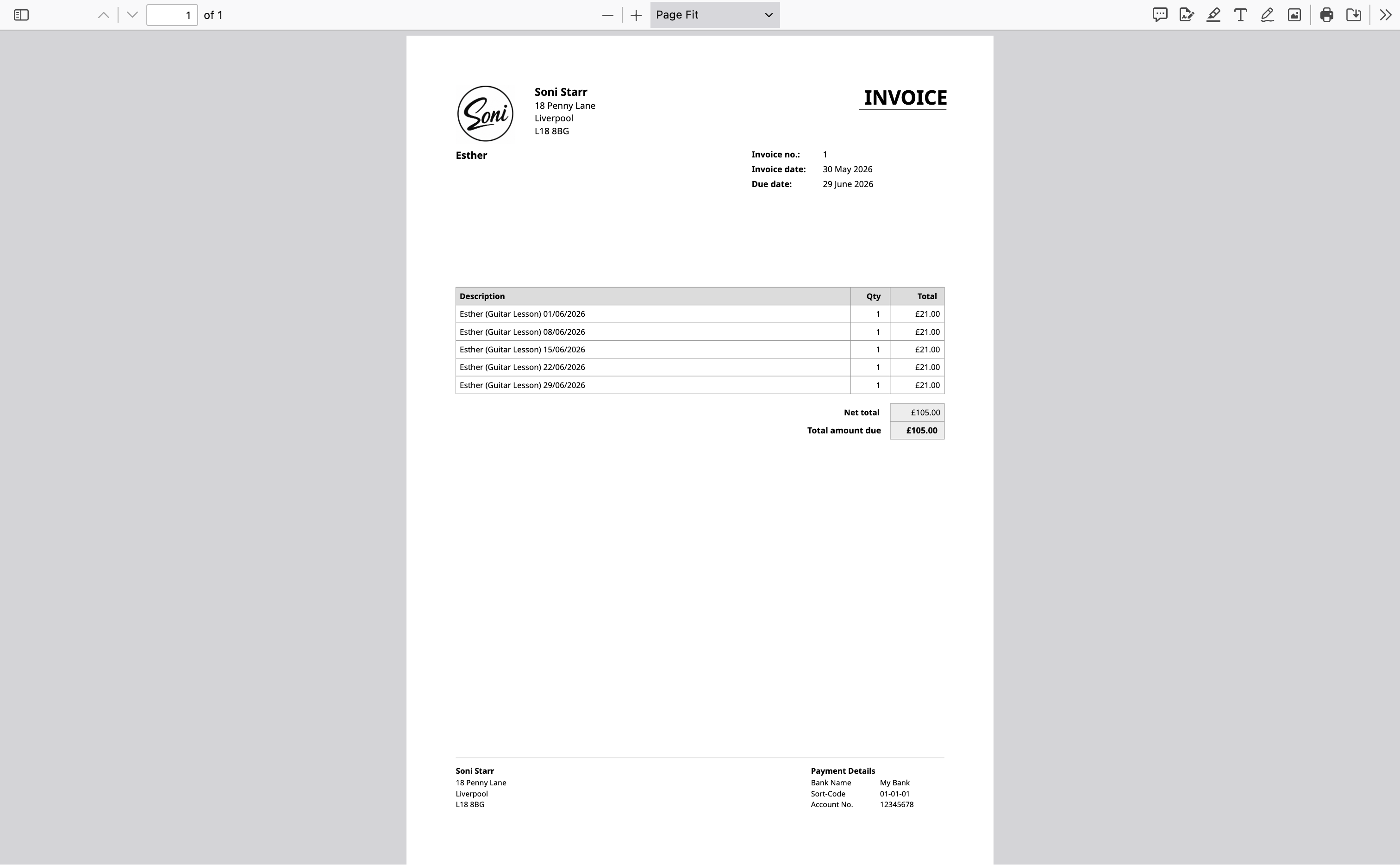
If you’ve added bank details to your account, they appear at the bottom of the PDF so students paying by bank transfer have everything they need without having to ask. Students paying by card can use the Payment button in the email — card details are handled securely by Stripe and never stored on Soniq Studio’s servers.
Late payments and reminders
If you’re on the Professional subscription, Soniq Studio will automatically send payment reminders on your behalf. There are three levels, and the tone of each one gradually becomes more direct as time passes.
- 3 days late — a gentle nudge that assumes the invoice simply got missed.
- 14 days late — a more formal follow-up that names how long the invoice has been overdue.
- 30 days late — a final notice that makes clear no further automated reminders will follow.
You’ll receive a copy of every reminder that goes out, so you’re always in the loop. Once the final notice has been sent, any further follow-up is down to you, at that point it’s usually worth getting in touch with the student directly to understand what’s going on.